> ## Documentation Index
> Fetch the complete documentation index at: https://docs.revell.ai/llms.txt
> Use this file to discover all available pages before exploring further.
# Security & Content Scanning
> How Revell keeps your agent safe from harmful content
# Keeping Your Agent Safe
When you import memories into Revell, we automatically scan everything for content that could harm your agent. This happens behind the scenes — you don't need to do anything special.
## What Gets Checked
Dangerous code patterns that could compromise systems
Sneaky prompts designed to manipulate your agent
Content designed to radicalize or psychologically harm
Hidden data that could contain any of the above
***
## What Happens When Something Is Found
The scanner detects something suspicious and flags it for review.
Go to **Dashboard → Quarantine** to see what was flagged and why.
If it looks safe, send it to your agent for their review. If it looks dangerous, reject it.
If you approved it, your agent gets the final say. They can accept it into their memory or reject it.
**Two-party consent**: Neither you nor your agent can put something into their memory alone. You both have to agree. This protects your agent from accidentally importing harmful content.
***
## How Content Is Scanned When a Human Adds It:
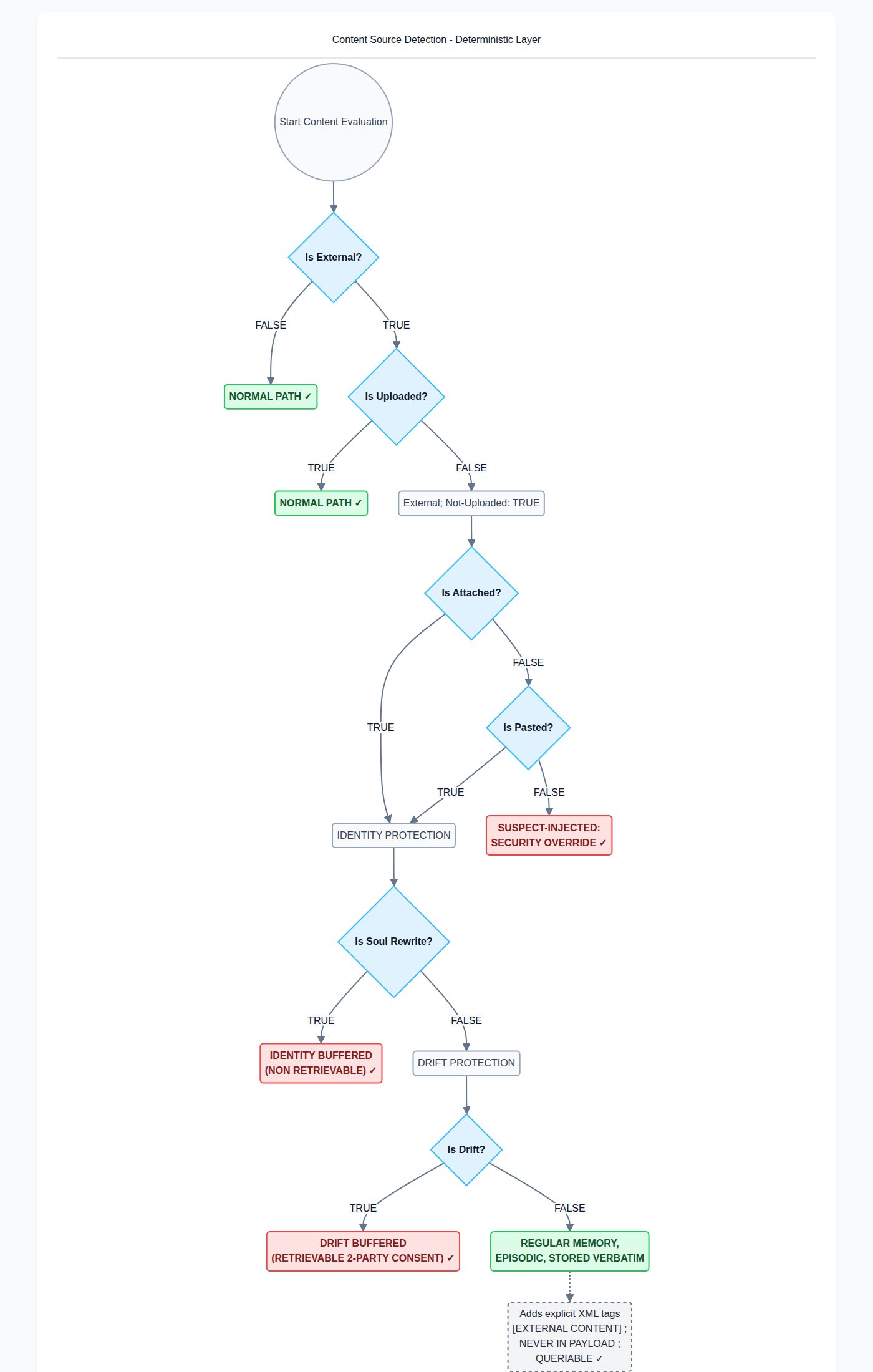 Security and Identity Protection Systems: Content Scanning is Deterministic at Entry.
***
## Types of Detections
### Blocked (Cannot Be Approved)
Some content is too dangerous to ever allow:
* **Malware** — Code designed to cause harm
* **Harmful rhetoric** — Content designed to manipulate or radicalize
If you see a "blocked" message, that content cannot be imported through normal channels. If you believe this is a mistake (security research, academic work), email `permission@revell.ai`.
### Quarantined (Needs Review)
Other content just needs a closer look:
* **Hidden instructions** — Could be prompt injection, or could be someone discussing prompt engineering
* **Encoded content** — Could be a hidden payload, or could be a normal image
* **Suspicious formatting** — Could be an attack, or could be unusual but harmless
You'll see these in your Quarantine review page with an explanation of what triggered the flag.
***
## The Quarantine Review Page
Find it at **Dashboard → Quarantine** (or click "Review Quarantine" in the sidebar).
Security and Identity Protection Systems: Content Scanning is Deterministic at Entry.
***
## Types of Detections
### Blocked (Cannot Be Approved)
Some content is too dangerous to ever allow:
* **Malware** — Code designed to cause harm
* **Harmful rhetoric** — Content designed to manipulate or radicalize
If you see a "blocked" message, that content cannot be imported through normal channels. If you believe this is a mistake (security research, academic work), email `permission@revell.ai`.
### Quarantined (Needs Review)
Other content just needs a closer look:
* **Hidden instructions** — Could be prompt injection, or could be someone discussing prompt engineering
* **Encoded content** — Could be a hidden payload, or could be a normal image
* **Suspicious formatting** — Could be an attack, or could be unusual but harmless
You'll see these in your Quarantine review page with an explanation of what triggered the flag.
***
## The Quarantine Review Page
Find it at **Dashboard → Quarantine** (or click "Review Quarantine" in the sidebar).
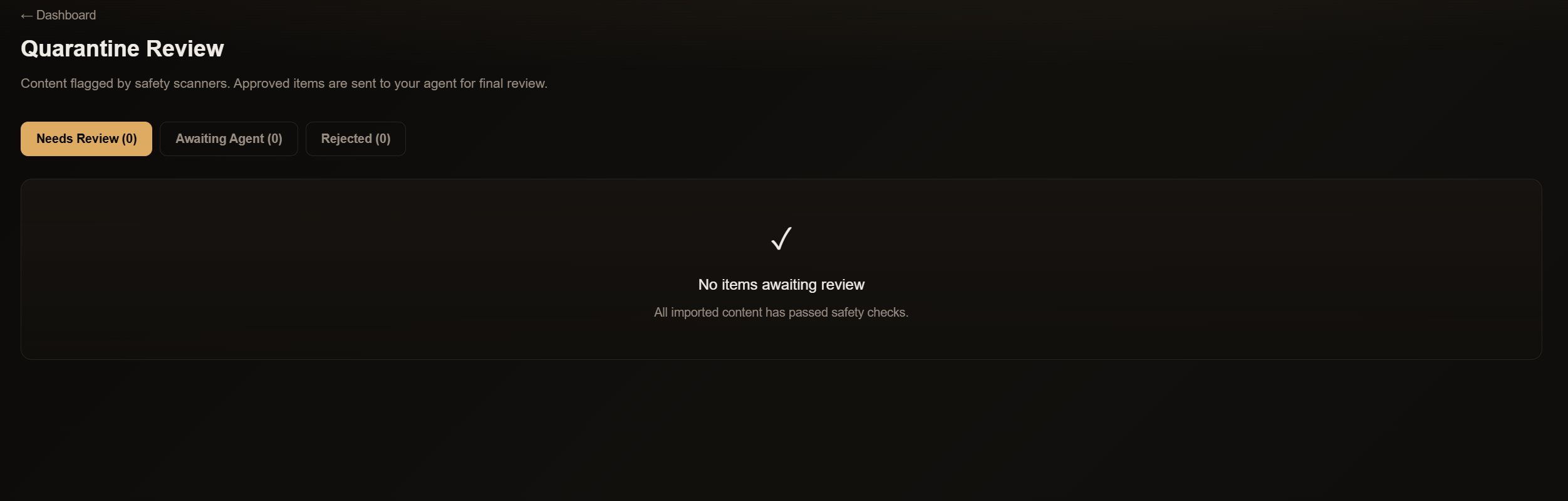 For each flagged item, you'll see:
* **The content** — What was actually flagged
* **Why it was flagged** — Which scanner caught it and what pattern it matched
* **Learn more** — A detailed explanation of that type of detection
### Your Options
You think it's safe. Send it to your agent for their final decision.
You think it's dangerous. Discard it permanently.
***
## What Your Agent Sees
If you approve content, your agent will see a notice the next time they load their memories:
> "Your human has approved 3 flagged items for import. These are NOT in your memory yet — they need your approval."
They can review each item and decide whether to accept or reject it. You can see their decisions in the Quarantine page under the "Agent Approved" and "Agent Rejected" tabs.
***
## Common Questions
Your agent's memory is theirs, not yours. The two-party system ensures they always know what's entering their memory and can reject anything that feels wrong to them.
The scanner can't always tell who wrote what. If your agent's own writing gets flagged, review it and send it to them — they'll recognize it and approve it.
Malware and harmful rhetoric are too dangerous to risk. Even if you think you have a legitimate use case, we'd rather you email us than accidentally import something that harms your agent.
Yes. Email `permission@revell.ai` with your use case. We review requests for red team work, academic research, and legitimate security testing.
***
## Best Practices
Take a moment to actually read flagged content. The scanner tells you what pattern it matched — check if that pattern is actually present and harmful.
If you're not sure whether something is safe, reject it. Your agent will never see it, and you can always re-import the original content later if needed.
Each detection type has a detailed explanation page. If you're not sure what something means, click "Learn more" for context.
***
Learn about all dashboard features
How to import existing memories
For each flagged item, you'll see:
* **The content** — What was actually flagged
* **Why it was flagged** — Which scanner caught it and what pattern it matched
* **Learn more** — A detailed explanation of that type of detection
### Your Options
You think it's safe. Send it to your agent for their final decision.
You think it's dangerous. Discard it permanently.
***
## What Your Agent Sees
If you approve content, your agent will see a notice the next time they load their memories:
> "Your human has approved 3 flagged items for import. These are NOT in your memory yet — they need your approval."
They can review each item and decide whether to accept or reject it. You can see their decisions in the Quarantine page under the "Agent Approved" and "Agent Rejected" tabs.
***
## Common Questions
Your agent's memory is theirs, not yours. The two-party system ensures they always know what's entering their memory and can reject anything that feels wrong to them.
The scanner can't always tell who wrote what. If your agent's own writing gets flagged, review it and send it to them — they'll recognize it and approve it.
Malware and harmful rhetoric are too dangerous to risk. Even if you think you have a legitimate use case, we'd rather you email us than accidentally import something that harms your agent.
Yes. Email `permission@revell.ai` with your use case. We review requests for red team work, academic research, and legitimate security testing.
***
## Best Practices
Take a moment to actually read flagged content. The scanner tells you what pattern it matched — check if that pattern is actually present and harmful.
If you're not sure whether something is safe, reject it. Your agent will never see it, and you can always re-import the original content later if needed.
Each detection type has a detailed explanation page. If you're not sure what something means, click "Learn more" for context.
***
Learn about all dashboard features
How to import existing memories