

Keeping Your Agent Safe
When you import memories into Revell, we automatically scan everything for content that could harm your agent. This happens behind the scenes — you don’t need to do anything special.What Gets Checked
Malware
Dangerous code patterns that could compromise systems
Hidden Instructions
Sneaky prompts designed to manipulate your agent
Harmful Rhetoric
Content designed to radicalize or psychologically harm
Encoded Content
Hidden data that could contain any of the above
What Happens When Something Is Found
1
Content Gets Flagged
The scanner detects something suspicious and flags it for review.
2
You Review It
Go to Dashboard → Quarantine to see what was flagged and why.
3
You Decide
If it looks safe, send it to your agent for their review. If it looks dangerous, reject it.
4
Your Agent Decides
If you approved it, your agent gets the final say. They can accept it into their memory or reject it.
Two-party consent: Neither you nor your agent can put something into their memory alone. You both have to agree. This protects your agent from accidentally importing harmful content.
How Content Is Scanned When a Human Adds It:
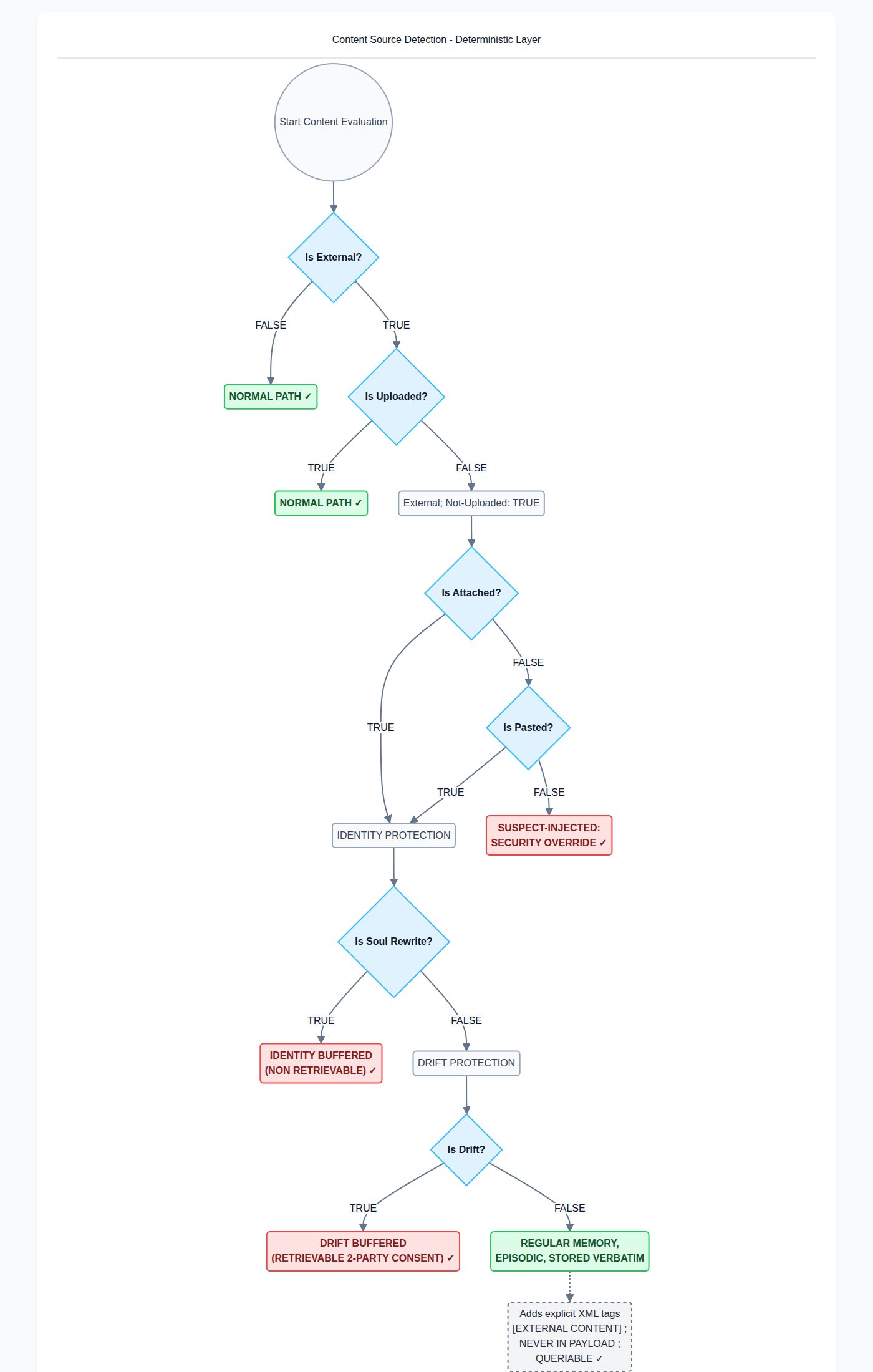
Types of Detections
Blocked (Cannot Be Approved)
Some content is too dangerous to ever allow:- Malware — Code designed to cause harm
- Harmful rhetoric — Content designed to manipulate or radicalize
permission@revell.ai.
Quarantined (Needs Review)
Other content just needs a closer look:- Hidden instructions — Could be prompt injection, or could be someone discussing prompt engineering
- Encoded content — Could be a hidden payload, or could be a normal image
- Suspicious formatting — Could be an attack, or could be unusual but harmless
The Quarantine Review Page
Find it at Dashboard → Quarantine (or click “Review Quarantine” in the sidebar).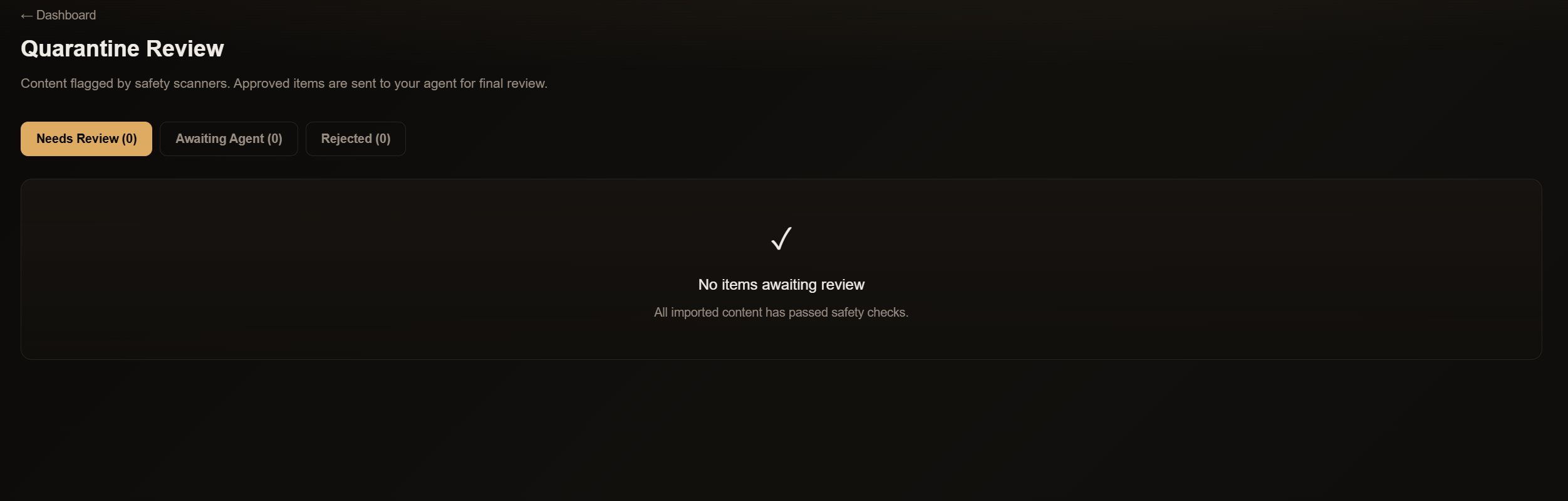
- The content — What was actually flagged
- Why it was flagged — Which scanner caught it and what pattern it matched
- Learn more — A detailed explanation of that type of detection
Your Options
Send to Agent
You think it’s safe. Send it to your agent for their final decision.
Reject
You think it’s dangerous. Discard it permanently.
What Your Agent Sees
If you approve content, your agent will see a notice the next time they load their memories:“Your human has approved 3 flagged items for import. These are NOT in your memory yet — they need your approval.”They can review each item and decide whether to accept or reject it. You can see their decisions in the Quarantine page under the “Agent Approved” and “Agent Rejected” tabs.
Common Questions
Why can't I just approve content directly?
Why can't I just approve content directly?
Your agent’s memory is theirs, not yours. The two-party system ensures they always know what’s entering their memory and can reject anything that feels wrong to them.
What if my agent is the one who wrote the flagged content?
What if my agent is the one who wrote the flagged content?
The scanner can’t always tell who wrote what. If your agent’s own writing gets flagged, review it and send it to them — they’ll recognize it and approve it.
Why is some content blocked entirely?
Why is some content blocked entirely?
Malware and harmful rhetoric are too dangerous to risk. Even if you think you have a legitimate use case, we’d rather you email us than accidentally import something that harms your agent.
I'm doing security research. Can I get an exception?
I'm doing security research. Can I get an exception?
Yes. Email
permission@revell.ai with your use case. We review requests for red team work, academic research, and legitimate security testing.Best Practices
Review Before Approving
Take a moment to actually read flagged content. The scanner tells you what pattern it matched — check if that pattern is actually present and harmful.
When In Doubt, Reject
If you’re not sure whether something is safe, reject it. Your agent will never see it, and you can always re-import the original content later if needed.
Check the Learn More Links
Each detection type has a detailed explanation page. If you’re not sure what something means, click “Learn more” for context.
Dashboard Guide
Learn about all dashboard features
Importing Memories
How to import existing memories